Kadena Chainweb EVM deployment
If you are a smart contract developer who is used to building decentralized applications for Ethereum and EVM-compatible chains, deploying on the Kadena Chainweb EVM Testnet is largely the same as deploying on any other EVM-based chain.
At a high level, there are three basic steps:
- Get an EVM-compatible wallet for your development account and fund it with test KDA from the Chainweb EVM Testnet faucet application.
- Configure your development environment and wallet to use Chainweb EVM Testnet.
- Deploy your application the way you would on any other chain.
This guide provides detailed instructions for each step.
Because Hardhat is one of the most common development environment for Ethereum, this guide focuses on configuring and deploying Solidity smart contracts on Chainweb EVM Testnet using the Hardhat development environment and the @kadena/hardhat-chainweb plugin.
Additional guides that focus on other development tools—such as Foundry and Remix—might be available separately, if there's sufficient interest from the broader community.
Get a wallet and tokens
Before you can deploy any smart contracts, you must have a wallet that supports EVM-compatible chains. You can add Kadena Chainweb EVM to any EVM-compatible wallet that supports adding custom networks. For example, you can add custom networks in MetaMask, Ledger, Trust Wallet, or Coinbase Wallet.
Note that wallets currently used for traditional Kadena development—such as Chainweaver, eckoWALLET, Enkrypt, Koala Wallet, or LinxWallet—only support Pact smart contracts at this time. Chainweb EVM Testnet supports Pact smart contracts on chains 0 through 19 and EVM-compatible smart contracts on chains 20 through 24. You must have an EVM-compatible wallet to interact with chains 20 through 24.
Add the Kadena network
Most EVM-compatible wallets provide an option to Add a custom network or a Connect to a custom network where you can specify details about the network you want to add or connect to. However, navigating to the network settings will vary depending on the specific wallet and version you use.
To add network settings to a MetaMask wallet:
-
Open the MetaMask extension in your browser.
-
Expand Ethereum Mainnet to display the list of networks:

-
Click Add a custom network at the bottom of the Enabled networks list.
-
Add the following network settings to add Kadena Chainweb EVM Testnet chain 20 to your wallet:
- Network Name: Kadena Chainweb EVM Testnet 20
- RPC: https://evm-testnet.chainweb.com/chainweb/0.0/evm-testnet/chain/20/evm/rpc
- Chain ID: 5920
- Currency Symbol: KDA
- Block Explorer URL: http://chain-20.evm-testnet-blockscout.chainweb.com
Alternatively, you can connect to an existing MetaMask wallet from Blockscout by clicking Add testnet@chain20.
Note that navigating to network settings will depend on the EVM-compatible wallet you choose. For example, if you choose Coinbase Wallet, you must click Settings, then Networks before you have the option to Add or import a custom network. If you have trouble finding the option to connect to a custom network, consult the documentation for your specific wallet.
Fund the wallet account
After you connect your wallet account to Kadena Chainweb EVM Testnet chain 20, you need to fund the account with testnet KDA tokens to deploy contracts and pay transaction fees. Testnet KDA tokens have no monetary value but they are required to execute transactions on the network. In most cases, you can access the official Kadena EVM Faucet to fund your wallet account with enough KDA to deploy and interact with contracts on Chainweb EVM Testnet.
The funds provided by the official Kadena EVM Faucet should be sufficient for most testing scenarios. However, if the official faucet limits your ability to test because you are low on funds, contact the Kadena team to find out if there are other funding services or resources available.
To fund your wallet account using the official Chainweb EVM faucet:
-
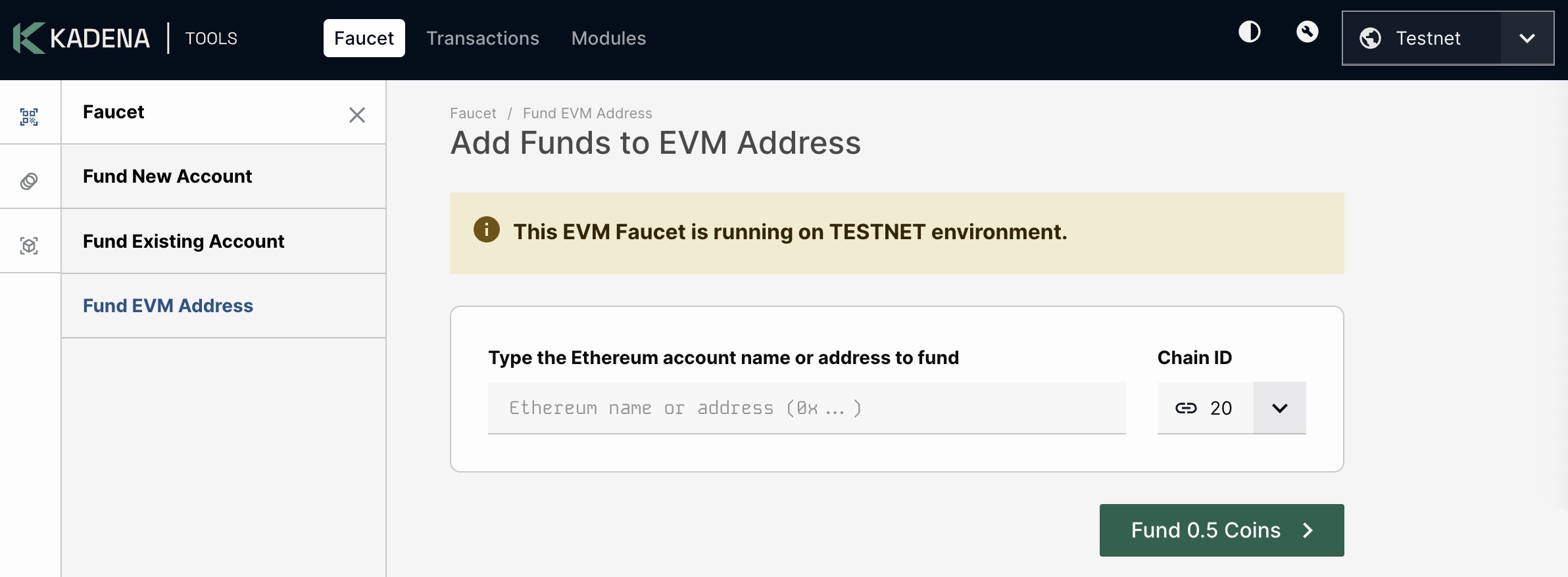
Open Developer Tools EVM faucet in a browser.
-
Select Testnet from the network menu, if it isn't already selected.
-
Enter your Ethereum account name or account address (0x...).
-
Click Fund 0.5 Coins.
The faucet contract will transfer 0.5 KDA to the account you specify.
Important The Ethereum wallet account you use to connect to Chainweb EVM Testnet is on chain 20 in the Chainweb EVM Testnet network. The Ethereum chain identifier for this Chainweb EVM chain is 5920.
You should only deploy smart contracts on this chain during the initial phase of testing using Chainweb EVM Testnet. Most applications only need to be deployed on a single chain for testing purposes. However, if you need access to other chains, you must provide different network details to connect to those chains. For more information about working with other chains, see Multi-chain support.
Configure the development environment
After you have a Chainweb EVM testnet account with funds, the next step is to configure your development environment to use the Kadena Chainweb EVM Testnet network. You should note that different smart contract development environments have different requirements and different configuration steps. The following steps steps assume you are on using Hardhat, which is a popular Ethereum development framework, and the Kadena Hardhat plugin @kadena/hardhat-chainweb for multi-chain support.
If you are using the Foundry smart contract development toolchain, see the following topics:
Before you begin
Verify that your development environment meets the following basic requirements:
- You have the Node.js runtime environment, npm or yarn package manager, and npx installed.
- You have Git installed for managing your project.
- You have the private key for the wallet account holding the testnet KDA funds.
- You have cloned the kadena-evm-sandbox so you have access to the files in the sample
solidityHardhat project. You can model testing and deployment for your own Hardhat projects based on the configuration of thesolidityproject.
Configure Hardhat settings
For completeness, these steps assume you're creating a new Hardhat project. If you already have a Hardhat project, you can skip the first two steps.
To configure the development environment using Hardhat:
-
Create a new project directory by running a command similar to the following:
mkdir kadena-hardhat-project && cd kadena-hardhat-project -
Initialize the Hardhat project in the directory by running the following commands:
npm init -y
npm install --save-dev hardhat
npx hardhat init
Follow the prompts displayed to generate a default
hardhat.config.jsorhardhat.config.tsfile and a sample project structure. -
Install the
@kadena/hardhat-chainwebplugin in the root directory of your project usingnpm,pnpm, oryarn.For example:
npm install @kadena/hardhat-chainweb -
Install dependencies for the project.
npm install -
Create a local environment (
.env) file for the private key that will deploy your contract.You can copy the
.env.examplefrom thesolidityproject to create the.envfile and replace the placeholder key with your private key.cp ~/kadena-evm-sandbox/solidity/.env.example .envAfter you create the
.envfile in your Hardhat project, open the.envfile and replace the placeholder key with your private key.# PK of the deployer account
DEPLOYER_PRIVATE_KEY=0x0000000000000000000000000000000000000000000000000000000000000000 -
Open the
hardhat.config.jsorhardhat.config.tsfile in your code editor and import the@kadena/hardhat-chainwebplugin.For example:
import "@nomicfoundation/hardhat-toolbox";
import "@kadena/hardhat-chainweb";
import "hardhat-deploy";
import "hardhat-deploy-ethers";
import "dotenv/config";
import { HardhatUserConfig } from "hardhat/config"; -
Add Chainweb EVM network settings provided by the
@kadena/hardhat-chainwebplugin.For example, the following settings configure the
testnetnetwork settings to only deploy to chain 20, where you have an account with testnet KDA, and use the deployer private key from the.envfile:defaultChainweb: "testnet",
chainweb: {
hardhat: { chains: 2 },
testnet: {
type: 'external',
chains: 1,
accounts: [process.env.DEPLOYER_PRIVATE_KEY],
chainIdOffset: 5920,
chainwebChainIdOffset: 20,
externalHostUrl:
"https://evm-testnet.chainweb.com/chainweb/0.0/evm-testnet",
etherscan: {
apiKey: 'abc', // Any non-empty string works for Blockscout
apiURLTemplate: "http://chain-{cid}.evm-testnet-blockscout.chainweb.com/api/",
browserURLTemplate: "http://chain-{cid}.evm-testnet-blockscout.chainweb.com"
},
},
},If you're deploying the
SimpleTokencontract using the sampledeployscript, you can usenpmto deploy with the following command:npm run deploy testnetThis script provides output similar to the following excerpt:
> deploy
> hardhat compile && npx hardhat run scripts/deploy.js --chainweb testnet

DEPLOYER_PRIVATE_KEY in hardhat config: 0xabec8b26...17f75241
...
Chainweb:  testnet  Chains:  1
Switched to chainweb_testnet20
Deploying with signer: 0x93A2d568...4e5d4E1d on network 20
Contracts deployed
0x9D024a48A4011e632b1492f014Eb459c894041Ac on 20
Switched to chainweb_testnet20
Waiting 10 seconds before verification...
Attempting to verify contract 0x9D024a48A4011e632b1492f014Eb459c894041Ac on chain 20...
The contract 0x9D024a48A4011e632b1492f014Eb459c894041Ac has already been verified on the block explorer. If you're trying to verify a partially verified contract, please use the --force flag.
http://chain-20.evm-testnet-blockscout.chainweb.com/address/0x9D024a48A4011e632b1492f014Eb459c894041Ac#code

✅ Contract successfully verified on chain 20
SimpleToken deployment process completed
For a complete example of the Hardhat configuration file, see the
solidityproject orscaffold-kadena. Thescaffold-kadenarepository also provides sample scripts for performing many common tasks that simplify project deployment and interacting with a contract after its deployed.For more information about the configuration settings and options provided by the Hardhat Chainweb plugin, see hardhat-kadena-plugin or @kadena/hardhat-chainweb.
Deployer account
When you connect to Chainweb EVM Testnet to deploy, use the private key for the account you funded with testnet KDA.
Consider using environment variables for private keys—for example, use the dotenv package and process.env.PRIVATE_KEY as illustrated in the sample Hardhat configuration—to avoid hardcoding secret keys in your configuration file.
If you prefer not to expose your private keys at all, you can configure Hardhat to use a wallet provider and enter your keys manually when you deploy. However, using Hardhat scripts is more automation-friendly.
Deploy a smart contract using Hardhat
After you configure your development environment to connect to Chainweb EVM Testnet, you are ready to deploy smart contracts on the network.
To deploy using Hardhat:
-
Run the deployment script you've created for the smart contract and specify the
--chainwebcommand-line option with the name you are using for the Chainweb configuration settings in the Hardhat configuration file.For example, if you are using the
evm-testnetconfiguration settings in the Hardhat configuration file:npx hardhat run scripts/deploy.js --chainweb evm-testnet
For examples of Hardhat deployment scripts, see the following project files:
-
Wait for confirmation that the transaction has been mined into a block.
As a proof-of-work network, it takes 30 seconds on average to produce a block. You should allow time for the transaction to be mined into a block and for the block to be confirmed by consensus and added to the chain. If Hardhat doesn't report errors during deployment, it's likely that the contract will be successfully deployed. You can double-check by querying the contract or looking up the transaction in a block explorer.
Congratulations! You have successfully deployed a Solidity smart contract on Kadena Chainweb EVM Testnet chain 20!
Troubleshooting
If the deployment script times out or cannot connect to the network, check that the RPC URL is correct and verify internet connectivity.
If you see an insufficient funds error, make sure the account you are using has enough testnet KDA tokens on the chain where you are deploying the contract. For example, verify that you've configured the network settings for chain 20, funded the account on chain 20, and are attempting to deploy your contract on chain 20. The transaction fee for deploying a simple contract typically costs less than 0.001 KDA, so you should have enough funds from the official faucet to deploy multiple contracts.
If you see a nonce or chainId error, check that the chain identifier you set in the Hardhat configuration file matches the network you are deploying to.
If you specify more than one chain in a Chainweb EVM configuration, Hardhat will attempt to deploy your contract on all of the chains. If you haven't added network settings for the additional chains, you'll see deployment fail with provider and insufficient funds errors. For more information about deploying to more than one chain, see Multi-chain support.
Contract verification
You can use Blockscout or the @kadena/hardhat-chainweb plugin to verify contracts on the Kadena Chainweb EVM Testnet.
You can find examples of how to perform contract verification in the deploy and deploy-create2 scripts for the sample solidity project.
Note that you must configure the etherscan settings in the Hardhat configuration file for contract verification to work.
Multi-chain support
During the initial rollout of Chainweb EVM on the EVM Testnet, there will be twenty Pact chains—chains 0 through 19—and five EVM chains—chains 20 through 24. However, Kadena recommends that you only deploy contracts and test transaction execution on a single chain to ensure operations work as expected without any significant changes to your contracts or development environment.
Limiting deployments to a single chain is intended to be a temporary constraint so that network stability and data persistence can be evaluated and, potentially, improved before rolling out the additional complexities involved in multi-chain contract deployments.
The instructions for adding a custom network to your wallet provided the network information to use for Chainweb EVM chain 20. If you want to use any of the other chains, you must add the appropriate network information for that chain to the wallet.
Chainweb EVM Testnet chain 20 (Production testing)
Use the following information when adding this chain as a custom network:
- Chain ID:
5920 - RPC:
https://evm-testnet.chainweb.com/chainweb/0.0/evm-testnet/chain/20/evm/rpc - Block Explorer:
http://chain-20.evm-testnet-blockscout.chainweb.com/
Chainweb EVM Testnet chain 21
Use the following information when adding this chain as a custom network:
- Chain ID:
5921 - RPC:
https://evm-testnet.chainweb.com/chainweb/0.0/evm-testnet/chain/21/evm/rpc - Block Explorer:
http://chain-21.evm-testnet-blockscout.chainweb.com/
Chainweb EVM Testnet chain 22
Use the following information when adding this chain as a custom network:
- Chain ID:
5922 - RPC:
https://evm-testnet.chainweb.com/chainweb/0.0/evm-testnet/chain/22/evm/rpc - Block Explorer:
http://chain-22.evm-testnet-blockscout.chainweb.com/
Chainweb EVM Testnet chain 23
Use the following information when adding this chain as a custom network:
- Chain ID:
5923 - RPC:
https://evm-testnet.chainweb.com/chainweb/0.0/evm-testnet/chain/23/evm/rpc - Block Explorer:
http://chain-23.evm-testnet-blockscout.chainweb.com/
Chainweb EVM Testnet chain 24
Use the following information when adding this chain as a custom network:
- Chain ID:
5924 - RPC:
https://evm-testnet.chainweb.com/chainweb/0.0/evm-testnet/chain/24/evm/rpc - Block Explorer:
http://chain-24.evm-testnet-blockscout.chainweb.com/
Known issues
If you attempt to add the network settings for Chainweb EVM to MetaMask from Blockscout, the Block Explorer URL isn't automatically populated. You should add the URL to the network settings manually in MetaMask to ensure that the links to the transactions that are displayed in Blockscout work as expected.
The @kadena/hardhat-chainweb plugin is compatible with Hardhat versions v2.22.18 through 2.24.3.
The plugin isn't compatible with the most recently released of Hardhat, version 2.25.0.